How to use multiple iPhones as cameras in OBS Studio
Connect two or three iPhones to OBS Studio over USB, add each as a separate camera source, switch between angles, and keep the feeds in sync.
Yes. OBS Studio can use two or more iPhones as separate camera sources. Install Camera for OBS Studio on each phone, connect every phone to the computer over USB, then add one iOS Camera source for each device in OBS.
Name the sources after their shots—for example, “Wide,” “Fretboard,” and “Loop Station”—and build a scene for each angle. With version 2.11.0 or newer of the OBS plugin, separate sources that select the same iPhone share one connection and decoder. You no longer need to use Paste (Reference) to prevent a camera from disconnecting when you switch scenes.
I use three old iPhones when I record guitar sessions: one for the room, one for the fretboard, and one for the loop station. Here is the complete setup without the guitar:
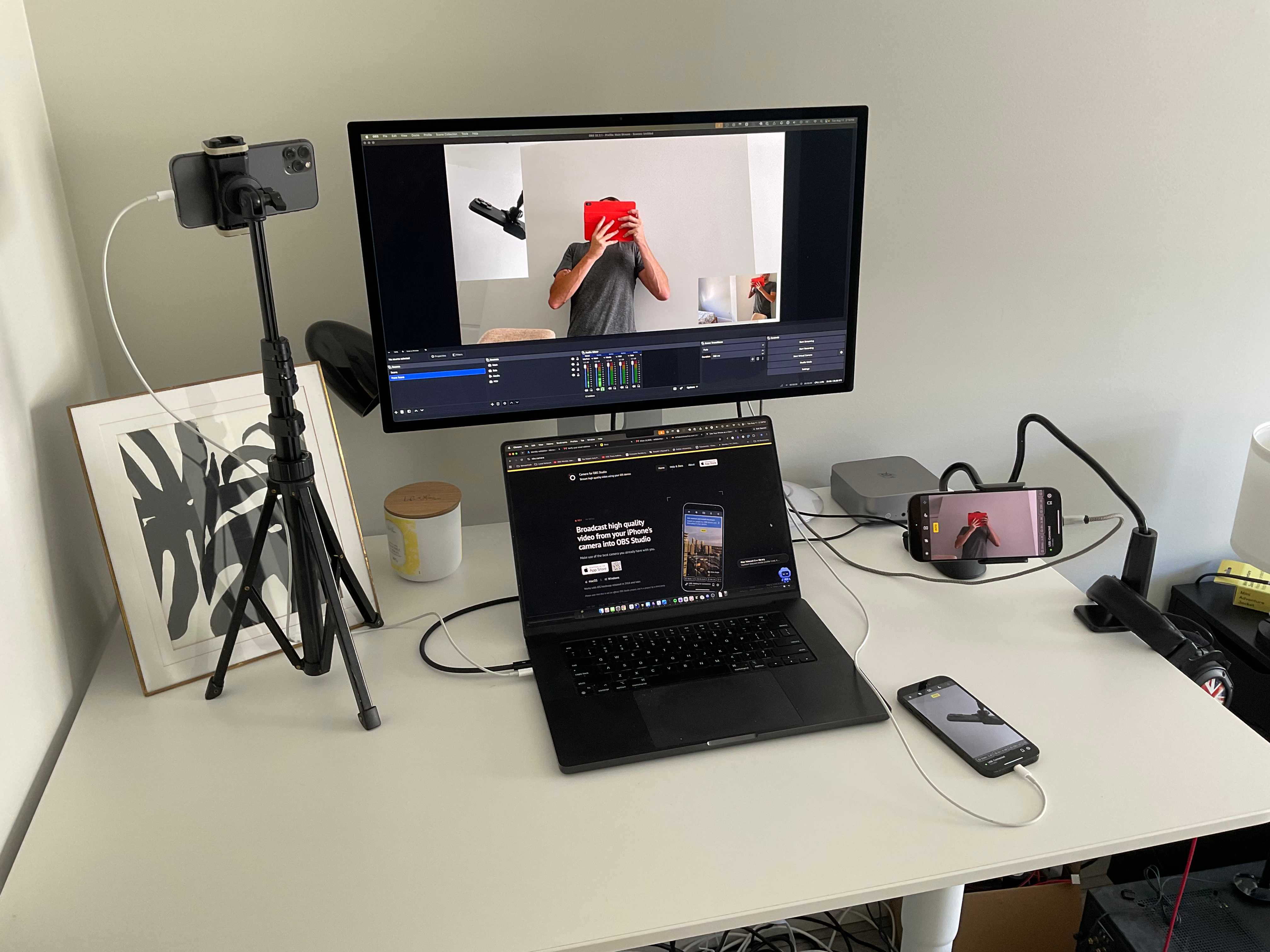
Recommended starting setup
- Connection: USB for every phone
- Video: 1080p at 30fps
- Scenes: One per camera angle, plus one grid view
- Switching: OBS hotkeys or a USB number pad
- Sync check: Record one clap and compare the feeds
- Plugin: Version 2.11.0 or newer
- Tested setup: Three iPhones; the practical limit depends on the computer
What you need for a multi-camera iPhone setup
- Two or three iPhones. Old phones are fine. For USB, I recommend hardware from 2016 or newer; the device compatibility guide explains the practical cutoff.
- A USB data cable for each phone. A charge-only cable will not work. If a phone never appears in OBS, swap the cable before changing any settings.
- A powered USB hub, if needed. Make sure it supports data, not only charging. Test each phone directly with the computer before adding the hub.
- Mounts. Small tripods or gooseneck clamps work well on desks, microphone stands, and shelves.
- The software. Install OBS Studio and the current Camera for OBS Studio plugin on the computer. Install Camera for OBS Studio on every phone.
If you already own the phones, the new cost is usually the mounts, cables, and possibly a powered hub.
How to connect multiple iPhones to OBS over USB
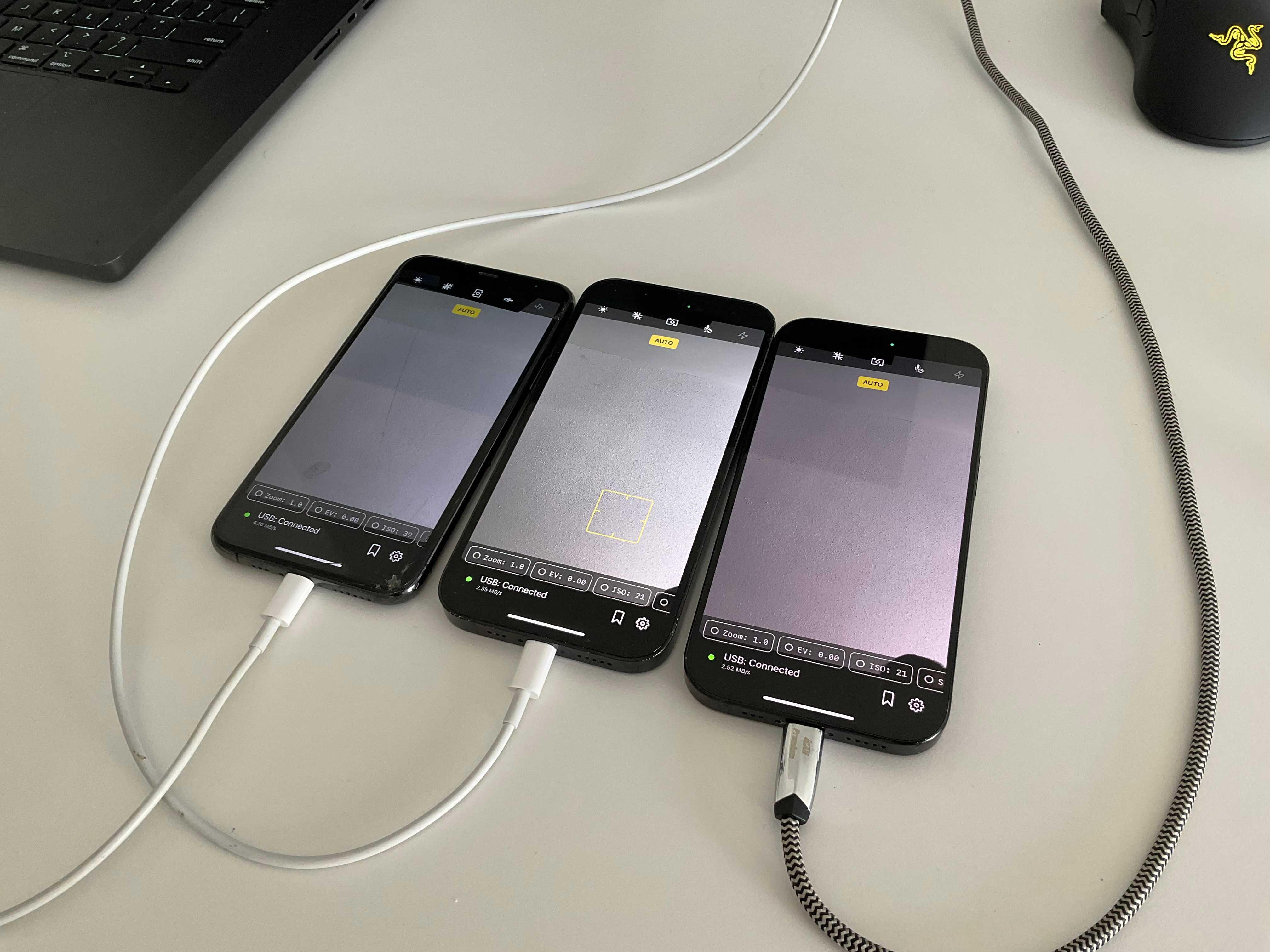
- Install version 2.11.0 or newer of the Camera for OBS Studio plugin.
- Install and open Camera for OBS Studio on every iPhone.
- Select the USB connection in the app and leave the app open in the foreground.
- Connect the first phone to the computer with a data-capable USB cable.
- In OBS, select Sources → Add → iOS Camera.
- Select that phone in the source settings and name the source after its shot, such as “Wide.”
- Repeat the process for every additional phone.
- Add all the sources to one temporary grid scene and confirm that every feed can appear at the same time.
The single-phone USB setup guide covers installation in more detail. A multi-camera setup repeats the same process for each device.
Create one OBS scene for each camera angle
Make one scene for each camera at full frame. Then make another scene with all the cameras arranged in a grid or picture-in-picture. The grid is useful for checking every shot without moving between scenes.
With plugin version 2.11.0 or newer, you can create another iOS Camera source and select the same phone in a different scene. The sources share the underlying connection and decoder, so a duplicate source does not open another connection to the phone.
Paste (Reference) is still useful when you want several scenes to share the same source settings and filters. A separate source is useful when one scene needs a different crop, filter, or source configuration. Both approaches work with the current plugin.
If you must use plugin version 2.10.0 or earlier, add the existing source to other scenes or use Paste (Reference). Older versions did not share a device connection between independent sources.
Assign a hotkey to each scene under Settings → Hotkeys. Number keys work; a small USB number pad is easier to operate without looking. A Stream Deck is the more expensive version of the same idea.
OBS Multiview lets you watch every scene at once before switching. Open it from the View menu.
USB or Wi-Fi for multiple iPhone cameras?
Use USB for every camera that can reach the computer. Three wireless cameras ask the same network to carry three live feeds while keeping them aligned. USB removes Wi-Fi congestion from the camera path and charges the phones while they work.
Wi-Fi remains useful for an angle that needs to move or cannot reach the computer. If you mix USB and Wi-Fi, expect to spend more time checking delay between the feeds.
Keep the iPhone camera feeds in sync
Use the same connection type, resolution, and frame rate for every angle when possible. Three USB phones are easier to align than a mixture of USB and Wi-Fi, but they are not genlocked cameras. Test them before a long recording.
Use the clap test:
- Record every camera at the same time.
- Clap once where every camera can see you.
- Inspect the grid scene frame by frame.
- If one feed arrives early, add a Render Delay filter to that source until the pictures line up.
Check again after changing a cable, hub, connection type, resolution, or frame rate. A delay that works for one setup is not a universal value.
Recommended settings for three iPhone cameras
Start each phone at 1080p30 rather than 4K or 60fps. The computer has to decode and composite every stream, so increasing the quality of three cameras adds up quickly.
Open View → Stats in OBS and watch rendering and encoding lag while you switch scenes and record. If either value rises, lower the camera resolution or frame rate and test again.
For long sessions:
- Remove thick phone cases and keep the phones away from hot lights.
- Turn on a Focus mode or Do Not Disturb.
- Disable Auto-Lock.
- Leave Camera for OBS Studio open in the foreground.
- Keep the phones connected to power; USB normally handles this for you.
Troubleshoot missing cameras, lag, and disconnections
A phone does not appear in OBS
Confirm that the cable carries data, unlock the phone, and accept Trust This Computer if prompted. Test the phone directly with the computer before using a hub. On Windows, confirm that the phone appears in Apple Devices or iTunes.
Keep the app open on the phone, then reopen the source settings in OBS and select the device by name. The USB troubleshooting guide has a complete reconnect sequence.
OBS shows the wrong phone
Give every source a shot name and select a specific device in its settings. Plugin version 2.11.0 and newer keeps that selection when devices reconnect instead of silently switching to another available phone.
The feeds lag or drift apart
Set every phone to the same frame rate and connection type. Start at 1080p30, check View → Stats, and test without the hub if a feed stutters. Run the clap test again after every hardware or quality change.
A phone disconnects when you switch scenes
Update the plugin to version 2.11.0 or newer. Independent sources can share the same device connection in current versions, so reference copies are not required. If you cannot update, reuse the existing source in each scene or use Paste (Reference).
Multi-camera OBS setup ideas
The two setups I hear about most are church live streams and music or DJ performances. The structure is similar: one wide shot, one or two close angles, and a grid or picture-in-picture scene.
The same arrangement works for lessons, demonstrations, podcasts, interviews, and any recording where one fixed view is not enough. The OBS camera use-case guide has more starting points.
Name the sources, connect every phone over USB, record one clap, and check the grid before a long session. Once the connections are predictable, switching between angles becomes the fun part.