Windows
If the installer ran but you still don’t see iOS Camera, follow theWindows manual installation guide.
DOCS
Camera for OBS Studio FAQ: USB, NDI and TroubleshootingCommon setup and troubleshooting answers for the iOS app and OBS Studio plugin.
Last reviewed: July 2026
Stuck right now?
Setup & Compatibility
Features & Settings
Troubleshooting — Install
Troubleshooting — USB connection
Troubleshooting — NDI / Wi‑Fi
Troubleshooting — Scenes
Billing & Licensing
No. Camera for OBS Studio is an unaffiliated third-party project.
OBS Studio provides a plugin API that we use for the desktop plugin. Please do not contact the OBS Studio team for support with this app or plugin — use our contact page instead.
There are two different bars: what the App Store allows, and what works well over USB.
iOS 12 shipped in 2018. As a simple cut:
If you’re buying a used phone as a dedicated camera, anything from the iPhone 7 / 2016 generation or newer is the practical “won’t regret it” line; 2018+ is the easy “don’t overthink it” line.
The app requires iOS 12 or iPadOS 12 or later. Always check the App Store listing for the current minimum — Apple can raise it in a future update.
Your device must be able to install that OS. Many older models never go higher than iOS 11 or earlier, so they cannot run the app even if they still turn on.
Use these tables to see each model’s first and maximum iOS / iPadOS version:
If Max iOS / iPadOS on that table is below 12, the device cannot meet the App Store requirement.
Examples that can still reach iOS / iPadOS 12 (from those tables; not a full inventory):
| Family | Can install iOS/iPadOS 12+ (rough cutoff) |
|---|---|
| iPhone | iPhone 5s, 6, 6 Plus, and newer (5s / 6 / 6 Plus max out at iOS 12) |
| iPad | iPad Air 2, mini 4, 5th generation, all iPad Pro, and newer (some earlier minis/Air max out at 12) |
| iPod touch | 6th generation (max iOS 12) and 7th generation |
Not sure which iPad you have? Identify your iPad model.
Even when the OS is new enough, USB encoding is harder on the device. For a stable USB setup we recommend hardware released in 2016 and later:
iPhone
iPad
Earlier phones that can still run iOS 12 (for example iPhone 5s / 6 / 6 Plus) may install the app, but we don’t recommend them for USB — on-device encode can struggle. Prefer NDI only if you must use that hardware, or use a newer device for USB.
Any device that meets the App Store OS requirement can use the wireless NDI path. Network quality matters more than the 2016 USB cutoff.
Use a known-good data cable (the one that came with the device is ideal), not charge-only. USB-C and Lightning both work when the cable and ports support data.
Download the plugin build that matches your OBS Studio major version from Getting Started.
If the installer finishes but you still don’t see iOS Camera on Windows, follow the Windows manual installation guide.
Current builds are also listed on the plugin releases page.
| Prefer USB when… | Prefer NDI (Wi‑Fi) when… |
|---|---|
| You want the lowest latency and a stable cable run | You need the camera to move freely |
| You’re streaming or recording for a long time | You’re on a solid local network and accept Wi‑Fi variability |
| You’re on Windows or Mac with OBS Studio and the plugin | You need NDI in OBS or another NDI-compatible app |
| You’re running multi-cam and can cable each phone | A phone can’t reach the computer with USB |
USB uses the desktop iOS Camera plugin (this site’s installers).
NDI uses the app’s wireless output plus an NDI source in OBS (or another NDI app). You do not need the USB plugin for NDI-only.
USB guide: iOS Camera plugin over USB
NDI guide: NDI + Wi‑Fi
If you’re unsure, start with USB.
Partly. Streamlabs Desktop (formerly Streamlabs OBS) does not load third-party OBS Studio plugins, so the low-latency USB plugin path will not work there.
You can use the app’s NDI / Wi‑Fi path and bring the phone in as an NDI source, if Streamlabs on your setup supports NDI input. See:
If you need the USB plugin, multi-device reliability, or the full OBS Studio workflow, use OBS Studio with this product instead.
Yes — via OBS Virtual Camera, not as a direct Zoom/Teams plugin.
This app feeds OBS Studio. Other apps only see the virtual camera OBS provides.
Continuity Camera is often enough for a simple single iPhone cam into a Mac meeting app.
Camera for OBS Studio is a better fit when you need:
They’re complementary: use Continuity for quick calls; use this app when you outgrow a single built-in webcam path. See also USB vs NDI.
macOS
Remove:
/Library/Application Support/obs-studio/plugins/obs-ios-camera-sourceIn Finder: Go → Go to Folder…, paste that path, then delete the folder.
Windows
Remove:
C:\Program Files\obs-studio\data\obs-plugins\obs-ios-camera-source C:\Program Files\obs-studio\obs-plugins\64bit\obs-ios-camera-source.dll C:\Program Files\obs-studio\obs-plugins\64bit\obs-ios-camera-source.pdb (if present)Turn off Rotation Lock on the iOS device. With the app open, rotate the phone to landscape — the output should follow.
If the image stays portrait, you may not be using the iOS Camera source. See How do I remove the app's buttons from the video stream?.
In the app, open Settings, then pick a resolution and frame rate.
Higher values (for example 4K or high frame rates) need more CPU/GPU on both the phone and the computer. Good starting points for most streams: 720p60, 1080p30, or 1080p60 if your machine handles it.
Bitrate is how much video data the phone sends each second. Change it in the app under Settings.
Start in the middle of the available range. Only max it out if the stream is already stable and you still want more detail.
Keyframe interval controls how often the stream sends a full frame (other frames only send changes). Set it in the app Settings.
Example: interval 30 at 30 fps ≈ one full frame per second.
If an older device freezes or takes a long time to recover, try a lower interval (full frames more often). That can use more CPU and bandwidth. Leave the default if the stream is stable.
Yes. Add another iOS Camera source in OBS and select the second device. How many you can run depends on your computer, connection type, and resolution — many people run two or three phones; more is possible on stronger machines.
The complete multi-iPhone OBS setup guide covers cables, scenes, switching, synchronization, and settings for long sessions.

For multi-cam:
Your App Store purchase covers a limited number of devices — see Billing.
Current versions of the app and plugin include microphone audio on the iOS Camera source. If you don’t hear or see it:
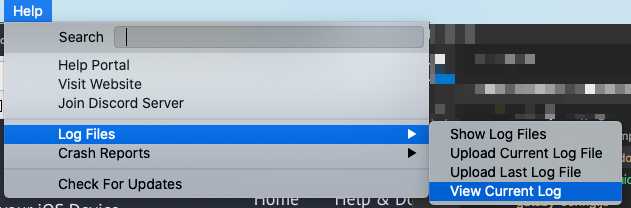
Still stuck? Contact support and attach an OBS log file (Help → Log Files → Show Log Files).
You need the desktop plugin installed. Follow the USB Getting Started guide.
Then check:
If it still fails, send us an OBS log (Help → Log Files → Show Log Files).
After a major OBS update, install a new plugin build that matches that OBS version.
OBS 28 changed the plugin API, which is when many people first hit this. The same rule applies for later majors (29, 30, 31, 32, …): use the build listed for your version, not an old leftover install.
Current signed plugin builds from this website should not trigger Gatekeeper’s “Unidentified Developer” warning.
.pkg from Finder (double-click), complete the installer, then reopen OBS.If macOS still blocks a freshly downloaded package, contact support with your macOS version and a screenshot of the dialog. To remove the plugin entirely, see How do I uninstall the plugin?.
Keep Camera for OBS Studio open in the foreground on the phone. Locking the screen or switching apps can interrupt USB. Disable Auto-Lock while testing or streaming.
Try a clean reconnect:
Windows: Complete Apple trust and confirm the phone appears in Apple Devices or iTunes first — full checklist: I'm on Windows and my iOS device isn't connecting. If the phone trusts the PC but OBS never connects, allow OBS through firewall/antivirus.
Cable issues: see Third-party cables, extensions, or USB hubs.
Charge-only cables and poor hubs are a common failure point.
Windows needs Apple’s USB support stack so the PC can talk to the iPhone. Do this before deep OBS troubleshooting.
Then use the Waiting for Connection steps if the app still never leaves that state. Cable checks: cables/hubs.
Try this order:
If it still crashes:
If you see the app UI in the OBS preview, the phone is almost certainly coming in as a generic video device — not the iOS Camera source.
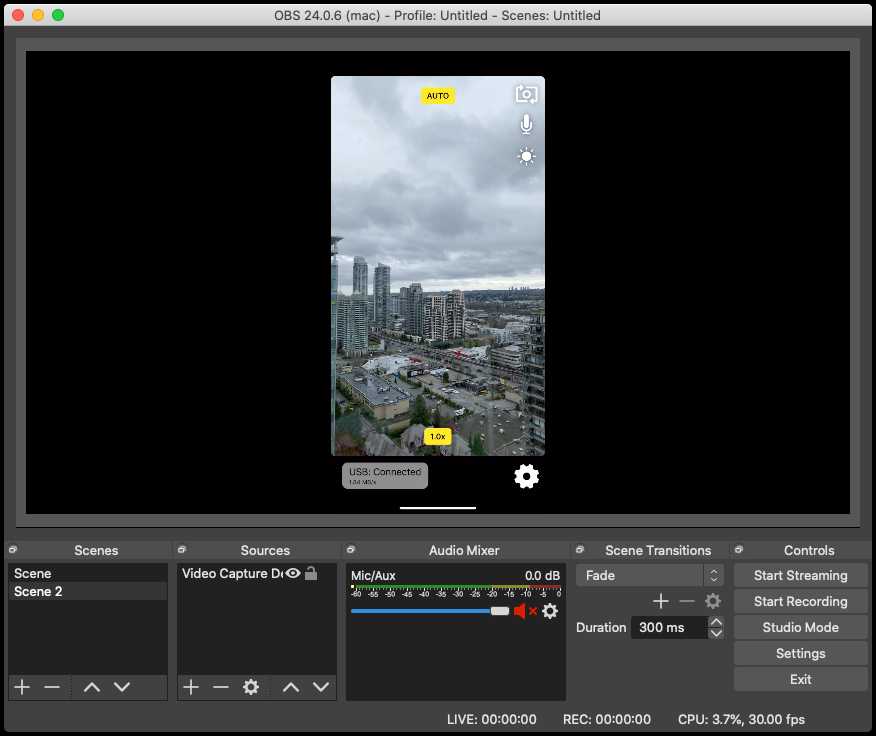
Install the plugin and add iOS Camera (not a generic capture device):
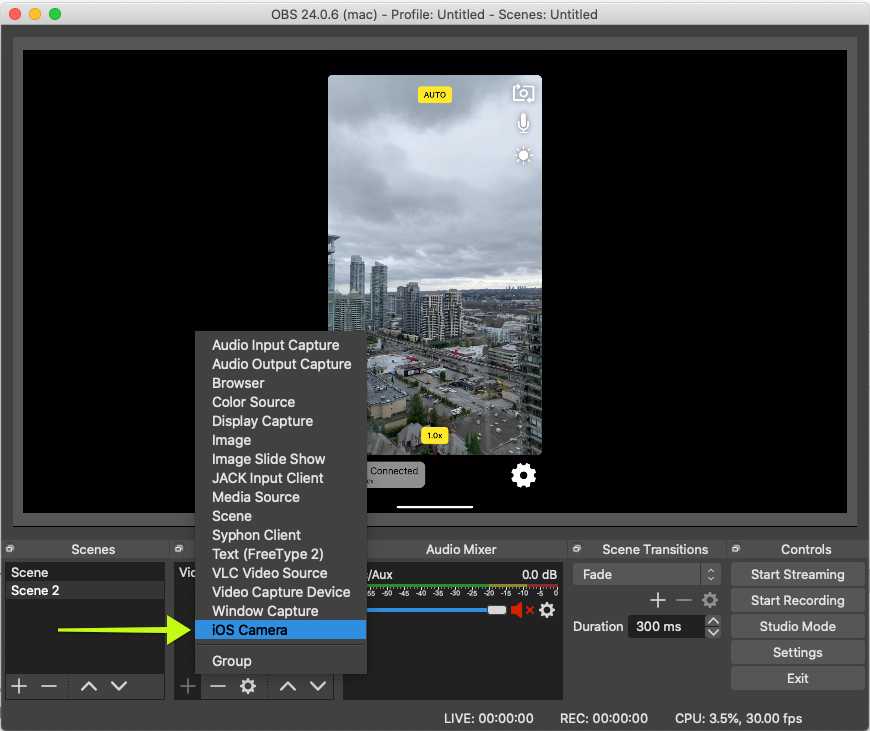
If iOS Camera is missing, see There is no 'iOS Camera' option and the USB Getting Started guide.
For multi-hour reliability, prefer USB when a cable is practical.
Update the Camera for OBS Studio plugin to version 2.11.0 or newer. Current versions let multiple iOS Camera sources share one connection and decoder for the same phone. You can create a separate source in each scene without making the phone disconnect and reconnect.

Paste (Reference) remains useful when you want every scene to share the same source settings and filters. A separate source is useful when a scene needs a different crop, filter, or source configuration. Both approaches work with plugin version 2.11.0 and newer.
If you cannot update from version 2.10.0 or earlier, copy the existing iOS Camera source and use Paste (Reference) in the other scenes. That keeps the older plugin pointed at one live connection.
One purchase works across devices when you use the same App Store account on each phone/iPad and tap Restore if the subscription doesn’t appear.
The App Store listing is the source of truth for plan types and any device limits. Check the current Camera for OBS Studio product page. If something doesn’t restore as expected, contact support with the Apple ID email used for the purchase (don’t send passwords).
Yes, by request. Email your Organization ID and organization name (they must match Apple’s records). If you need help finding your Organization ID, see Apple’s guide.
Contact Camera for OBS Studio support.